Product

Office BoardEvery patient and every op on one wall TVFront deskCheckout flags, quick asks and who's availableOp tabletsCall the doctor with one tap, see every opOp TVsWelcome each patient by name on the TV in the opDoctor screenA queue that sorts itself, and your next hourVisitPing appA bubble over Open Dental on every office computerOffice chatRooms, messages and visit threads, encryptedAlertsWindows, phone and Watch alerts that reach the right personReportsVisit recaps, wait times and real appointment lengths

More

SecuritySetupPricingWhat's newHelp center
Start 30-day free trial Try the live demo
Home

Op TVs NEW

Welcome every patient by name.

The TV already in each op welcomes the patient by first name, shows who's taking care of them and what today's visit is for, plays your slide shows and videos, and sends them off with tips for their visit. Nobody has to touch it: it follows the appointment in Open Dental.

An op TV saying Welcome, Dominic! with Today: Cleaning, X-rays, Checkup with Dr. Okafor, about 1 hour, and the care team Brooke Hale, Hygienist and Dr. Ada Okafor, Dentist.
The welcome on an op TV in the Brookside demo. Made-up patient.
Welcome

Their name, their team, their visit

When the patient is seated in Open Dental, the TV in that op says hello within a few seconds.

  • "Welcome, Dominic!" with the first name only, never the last name
  • A Today line made from the procedures on the appointment: Cleaning, X-rays, Checkup with Dr. Okafor, about 1 hour
  • The care team with their photos, from Team › People › Photo
  • 25 visit types come set up, from Cleaning to Root canal, each with its codes, words and tips
  • Private visits like a biopsy get a plain welcome with no visit line
  • A child's cleaning has its own tips, for kids and their grown-up
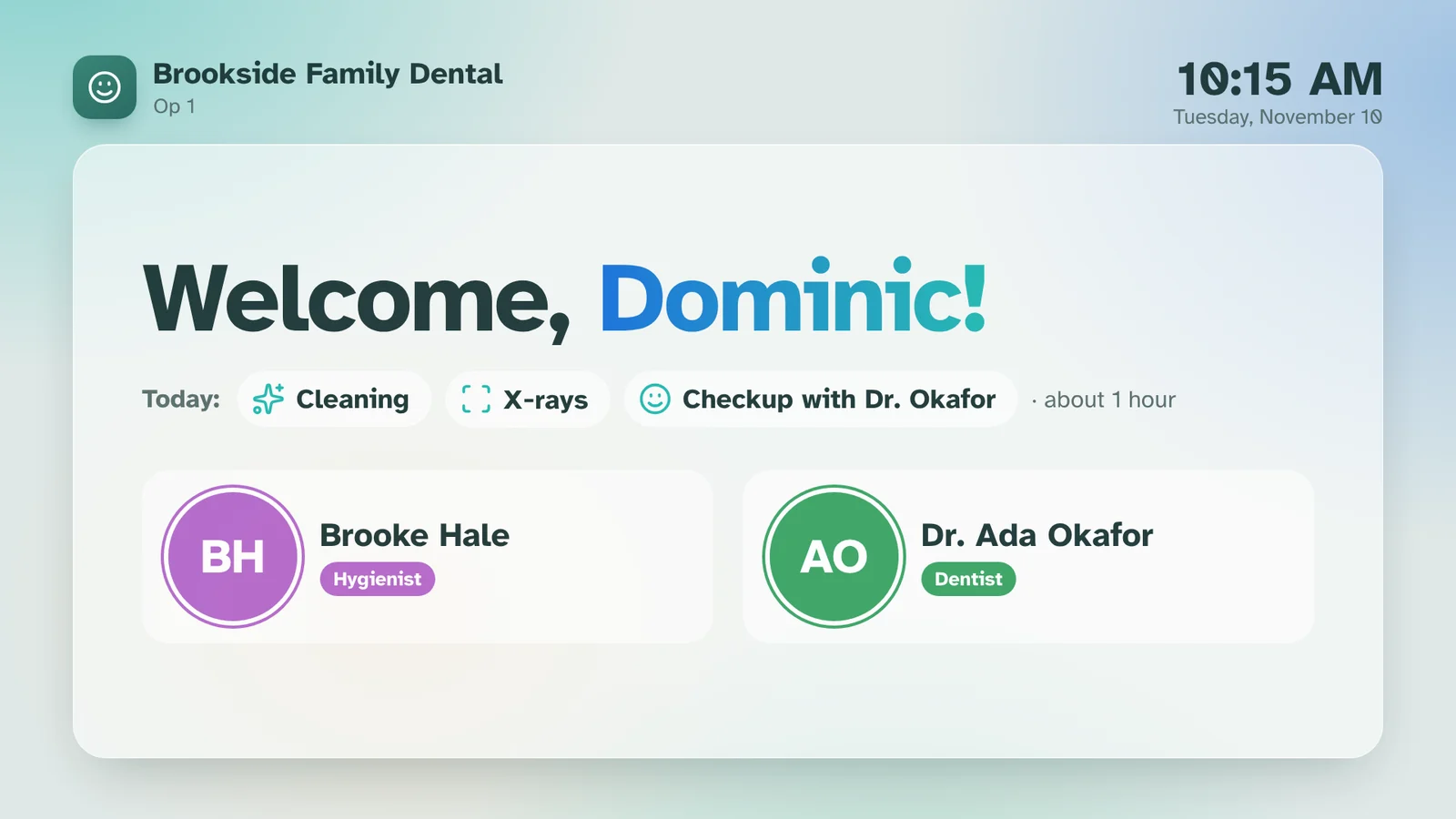
The welcome screen on an op TV.
During the visit

Calm, or all about your office

After the welcome, the TV plays what your office picked, in order.

  • Your own slide shows and videos (MP4 up to 1 GB, from Canva or a phone)
  • Calm slides with scenery and slow breathing
  • Good to know: short tips, like why we take X-rays
  • An optional tip that Home on the remote opens Netflix or YouTube
  • Sound on or off for videos
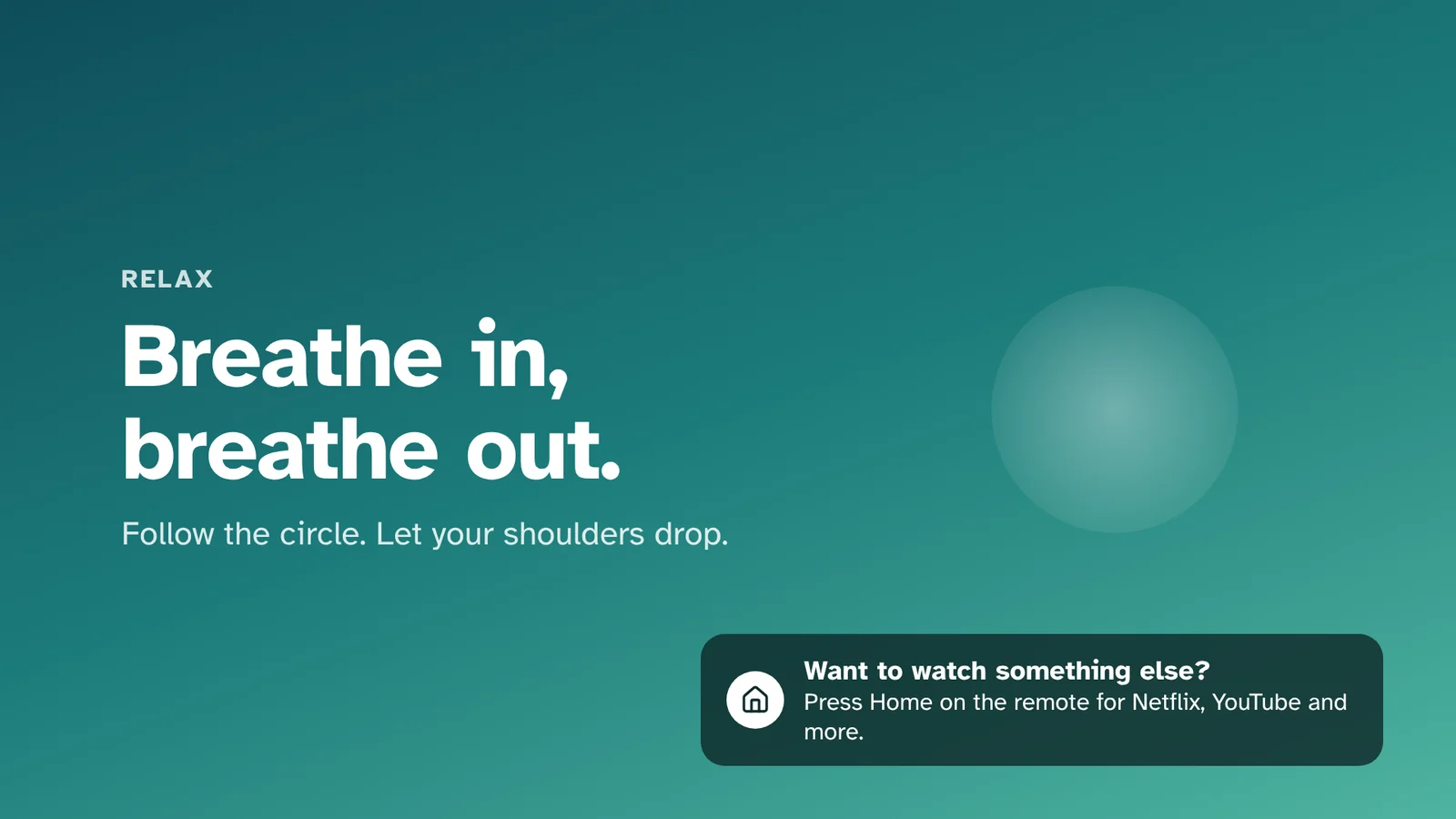
A calm slide: Breathe in, breathe out, with a slowly growing circle and a tip about the Home button.
Wrap up

Tips for today, and when they're back

When the visit is Checking out, the TV shows what to do after today's visit.

  • The tips for today's visit, like "Wait to eat until the numbness wears off"
  • Their next visit, if one is booked
  • Then "Thanks, Dominic!", and a dark "not in use" screen after turnover
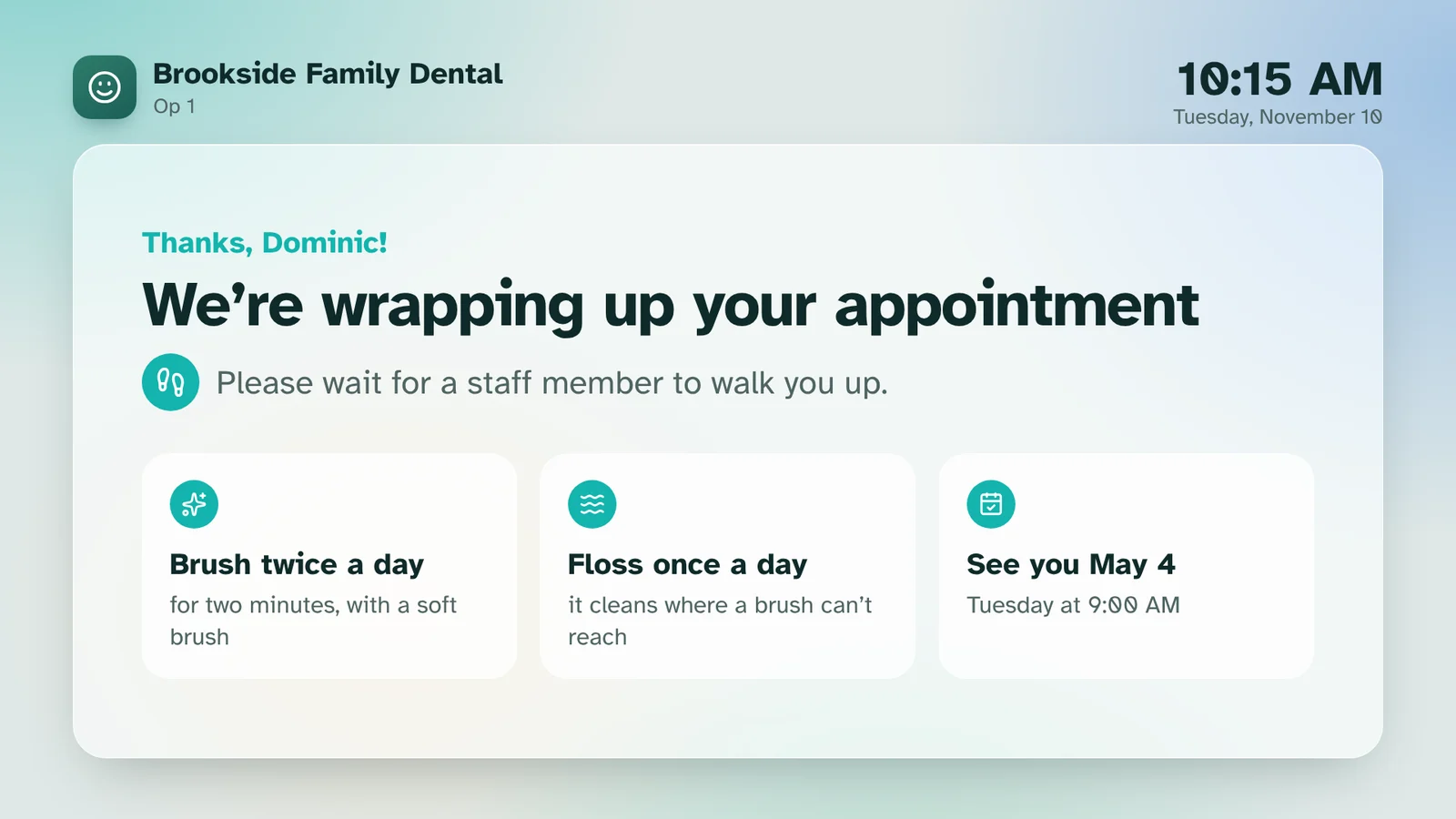
Wrap up: Thanks, Dominic! We're wrapping up your appointment, with brushing and flossing tips and See you May 4.
Slide shows

Make every slide your own.

Make a slide show in Global settings › Op TVs. Every slide opens in the screen designer, in your colors and fonts.

  • 24 presets to start from, like Meet the team, Services, Offer, Tip and Review QR
  • Text, pictures, shapes and 2,000+ icons
  • Meet the team fills in everyone with a photo
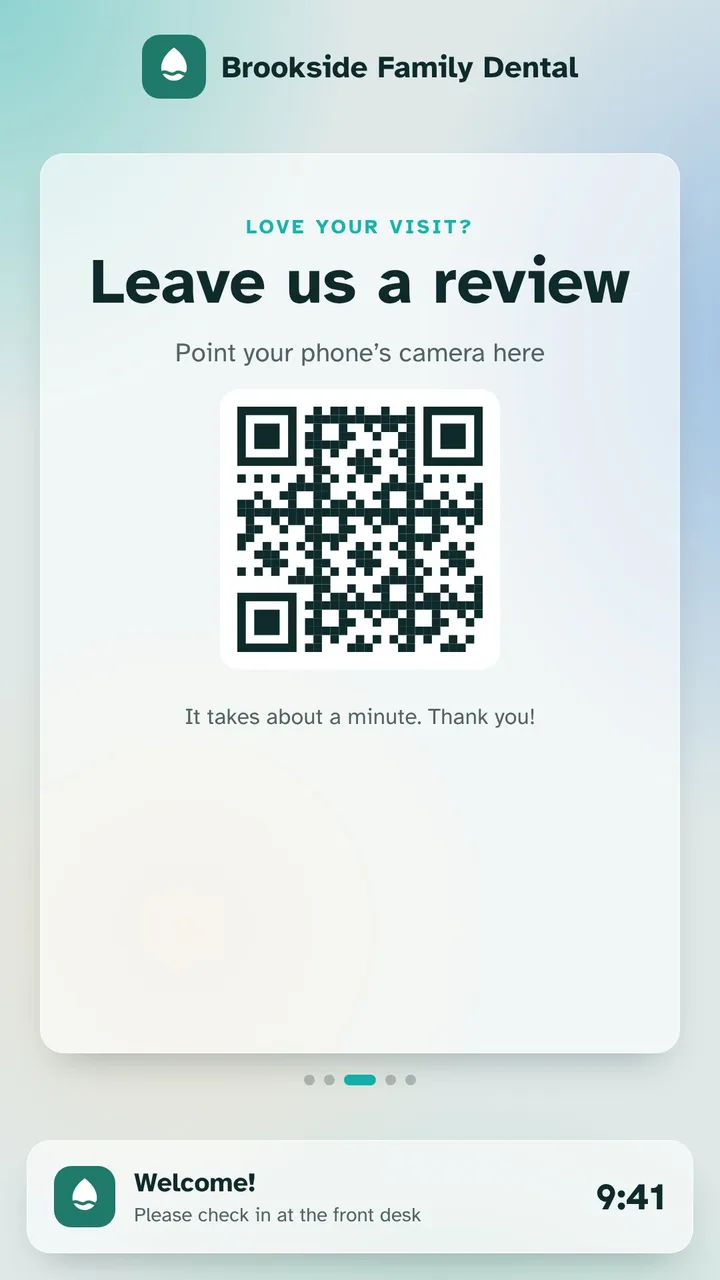
  • Review QR draws the code from your review link
  • Slides you already made open in the designer and look the same
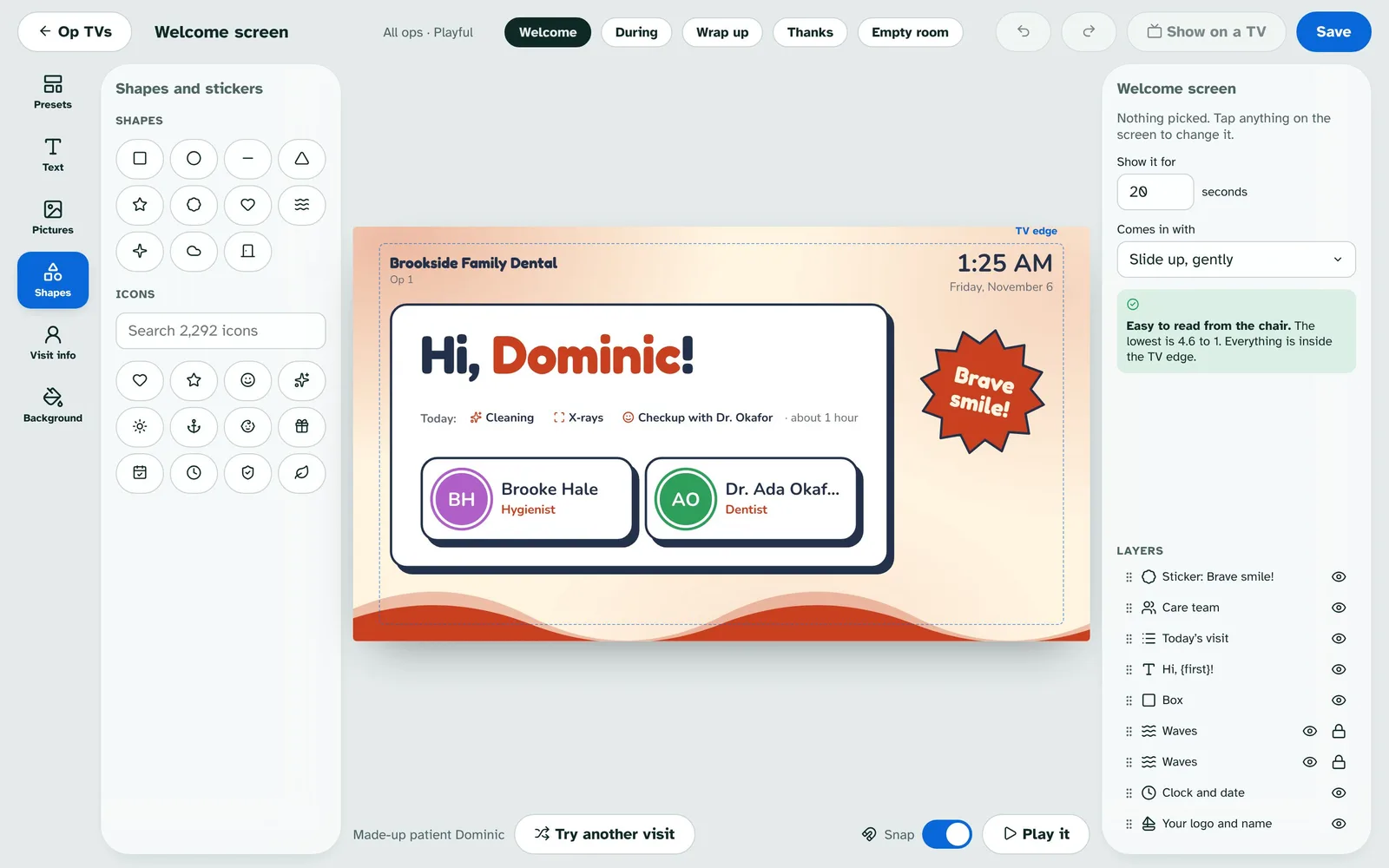
The screen designer with shapes and icons on the left, a made-up welcome screen in the middle and its layers on the right.

On the TV you already have

Set it up once. It looks after itself.

Fire TV and Google TV app

Install VisitPing TV, and it finds your office on the Wi-Fi. Or open your VisitPing address with /tv on any TV's browser.

Approve each TV once

The TV shows a code. Approve it in Security › Devices as Op TV and pick its op.

Opens when the TV turns on

The app opens on its own when the TV wakes, so the op is ready before the patient sits down. Newer Fire TVs need a one-time setup from an office computer.

Updates from the TV

Update now in the app's Menu gets the new version from visitping.com, after checking its SHA-256 and signing key.

Change it for this visit

TV in this op, on the op tablet and in the app: show the care team again, play the office video or calm slides, or turn the TV off for this visit.

Private and encrypted

First names only. Photos, pictures and videos are kept encrypted on your server, and an Op TV can only open the TV page.

Make it yours

Your office's look, not ours

Start from a preset, then make every screen your own in the screen designer.

  • Presets to start from, then your logo, colors and fonts
  • Text, pictures, shapes and live visit parts like the first name and care team
  • A different look for one op, like a kids' room
  • Slide shows open in the same designer
  • Try another visit, or show it on an op's TV for a minute
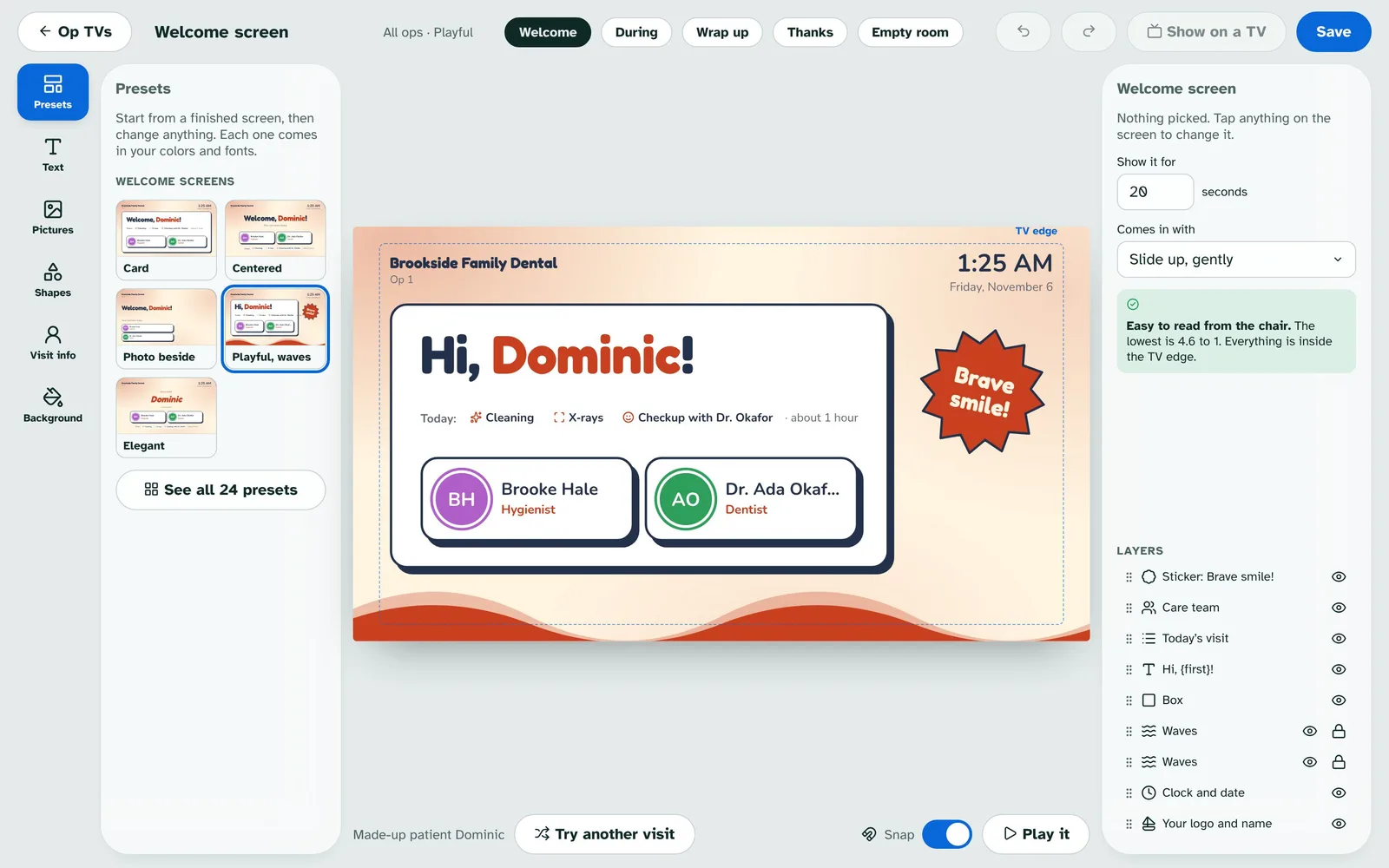
The screen designer with presets on the left, a made-up patient's welcome screen in the middle and its layers on the right.

See it running

Try the live demo. Nothing to install.

Brookside Family Dental is a made-up office that runs a busy day around the clock: patients arrive, rooms call the doctor, the front desk checks people out and the team chats. Pick how many ops and people you want, then take the 5-minute tour.

  • Works on a computer, tablet or phone
  • Tap any name to sign in, no PIN
  • Made-up patients only
Open the live demo demo.visitping.com

Ready when you are.

Every feature free for 30 days on your own Open Dental server. No card needed.

Start free trial