Know where every patient is, without leaving the chair.
VisitPing turns the appointment statuses your team already sets in Open Dental into a live Office Board, a tablet in every op, a doctor queue on any phone, and a front desk that sees what's owed before checkout, with office chat on every screen. It runs on your own server and only ever reads.
No card for the trialRead-only to Open DentalPatient data stays in your office
The Office Board on a wall TV. Sample patients, not real data.
Reads Open Dental, never writes
Runs on your server
Any TV, tablet, phone or PC
Doctor requests arrive instantly
Every screen, one source of truth
Each role sees what it needs, from the wall TV to the doctor's pocket.
Your team keeps working in Open Dental. VisitPing watches the status changes and gives every screen in the office its own job.
Office Board
The whole office at a glance
Made for a wall TV and readable across the room.
Columns follow your own Appt Confirmed statuses, like On my way, Arrived and Paperwork
Cards count up from appointment time, then glow and flash as patients wait
Family, Premed and New patient tags right on the card
Expected soon shows who's due next and who's running late
Every op shows who's in it, colored by doctor, and warns if a patient is marked in two rooms
An op waiting on the doctor ripples in the request's color, and a room being turned over shows how long since the patient left
Big clock and an always-on color key on wall displays
Front desk
Checkout with nothing missed
Every patient heading to the desk, with what needs doing before they leave.
Patients show up as their visit wraps up: 10 minutes before the appointment ends, or as soon as the room taps Checking out soon
Checkout flags from Open Dental: balance, claims not sent or over 90 days, insurance to verify, recall and unscheduled treatment
Quick buttons you set up: to a doctor, to a whole job, or down a list, plus Need help for everyone
Front desk jobs: check out and treatment planning ask #1 first, then #2
Who's available follows your Open Dental time clock, with Available, Busy and Away
Room status for every op, with an alert when a room is running behind and when it's back on time
Right-click a patient for Checkout complete, I'll take it, or a chat about the visit
Reports on doctor response times, time in each status, and checkout flags left open
Op tablet
Call the doctor with one tap
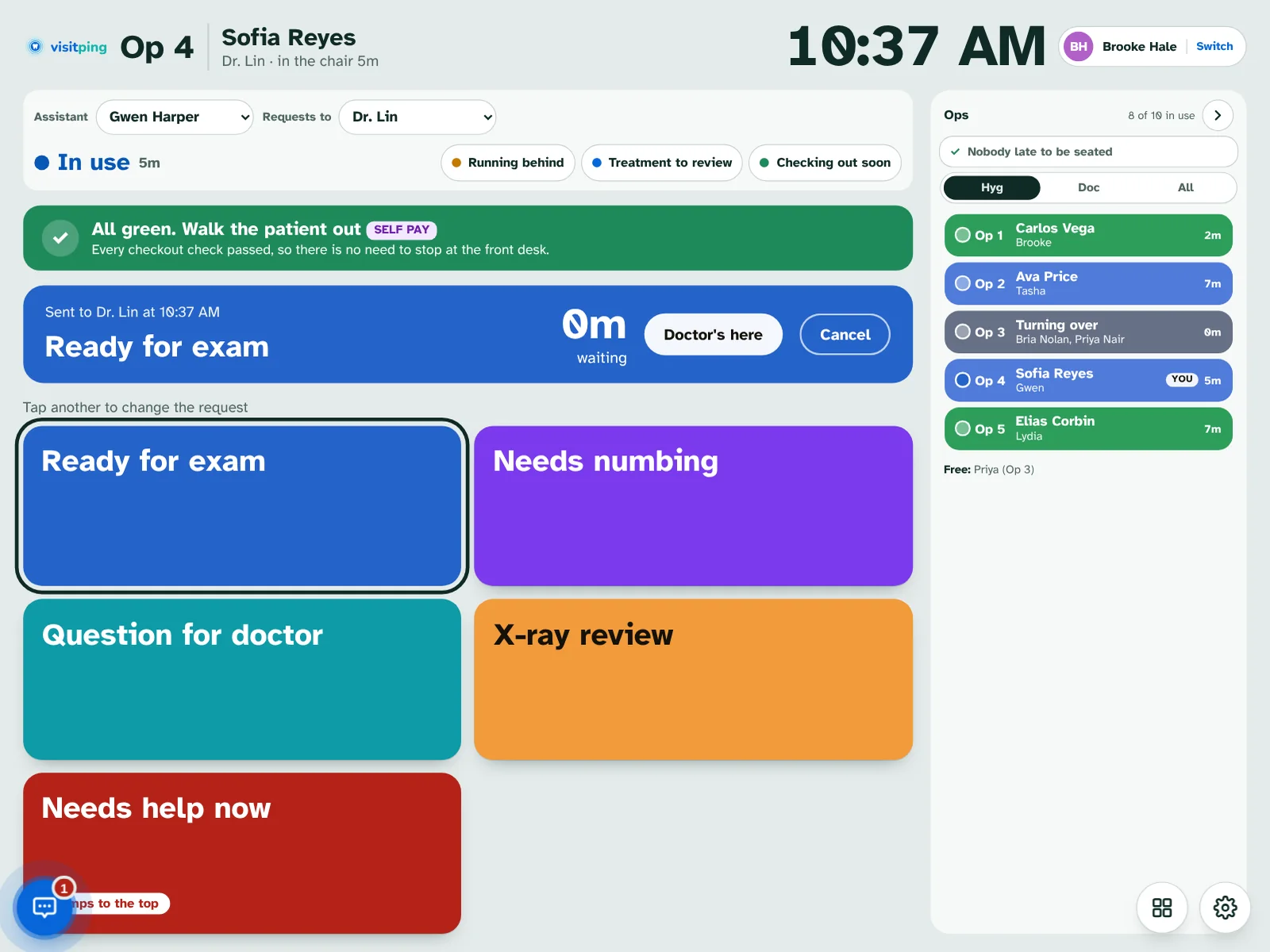
A tablet in each op, with big buttons your team picks and every other op beside them.
Ready for exam, Needs numbing, X-ray review and your own requests
Needs help now jumps to the top of the doctor's list
Medical alerts: premed, allergies and medical notes from Open Dental
See what the front desk needs before the patient leaves, or a green "Walk the patient out" when nothing's owed
Tap Running behind or Checking out soon so the desk knows
Treatment to review asks your treatment coordinator where the patient should go
A heads-up when your next patient arrives
An Ops panel shows every op, who's late to be seated, who's free and who needs help, with waiting requests rippling in their color
Doctor screen
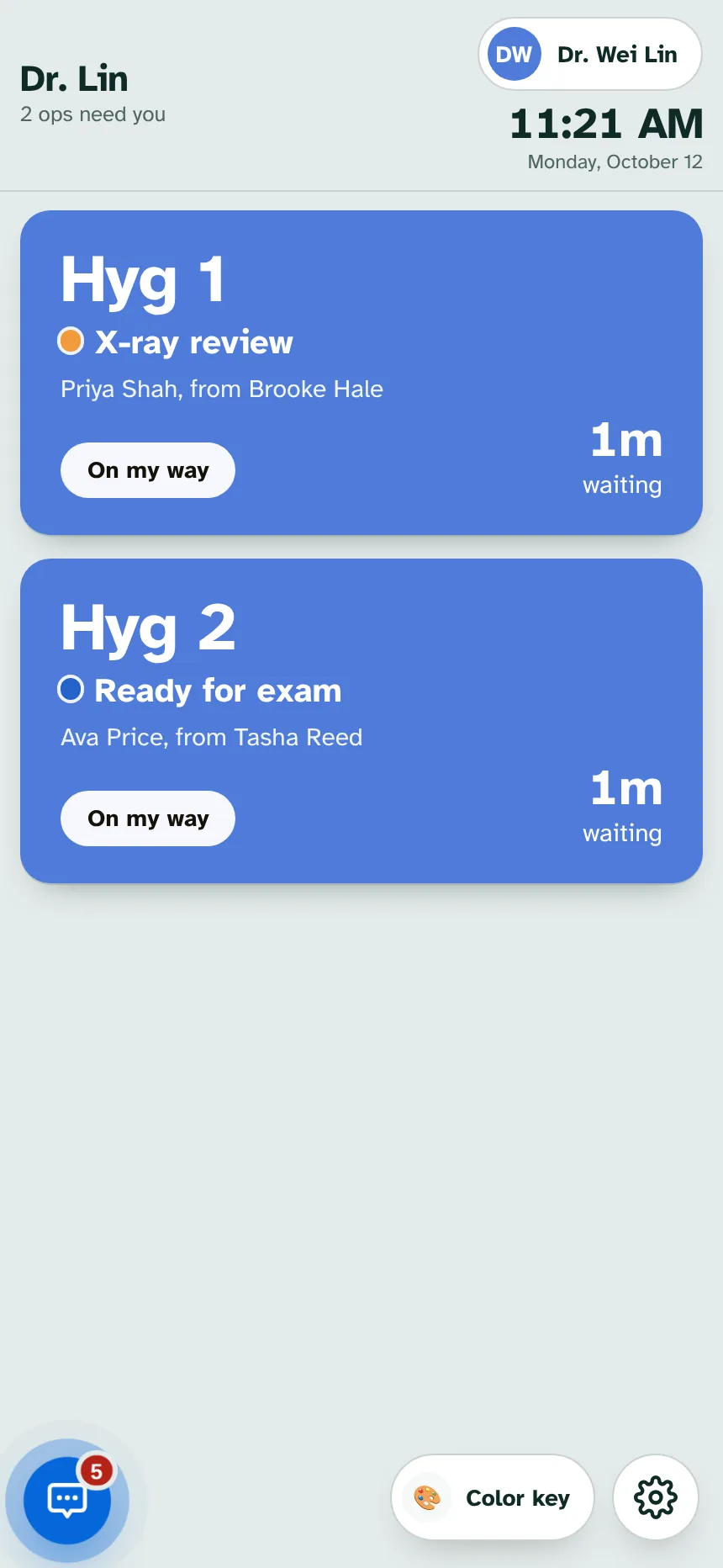
A queue that sorts itself
On any phone, tablet or computer.
Every op that needs the doctor, longest wait first
Tap On my way so the op knows you're coming
Pop-ups with sound, and phone notifications that never name the patient
Each morning, tap the rooms you're in and their patients come to you
Office chat
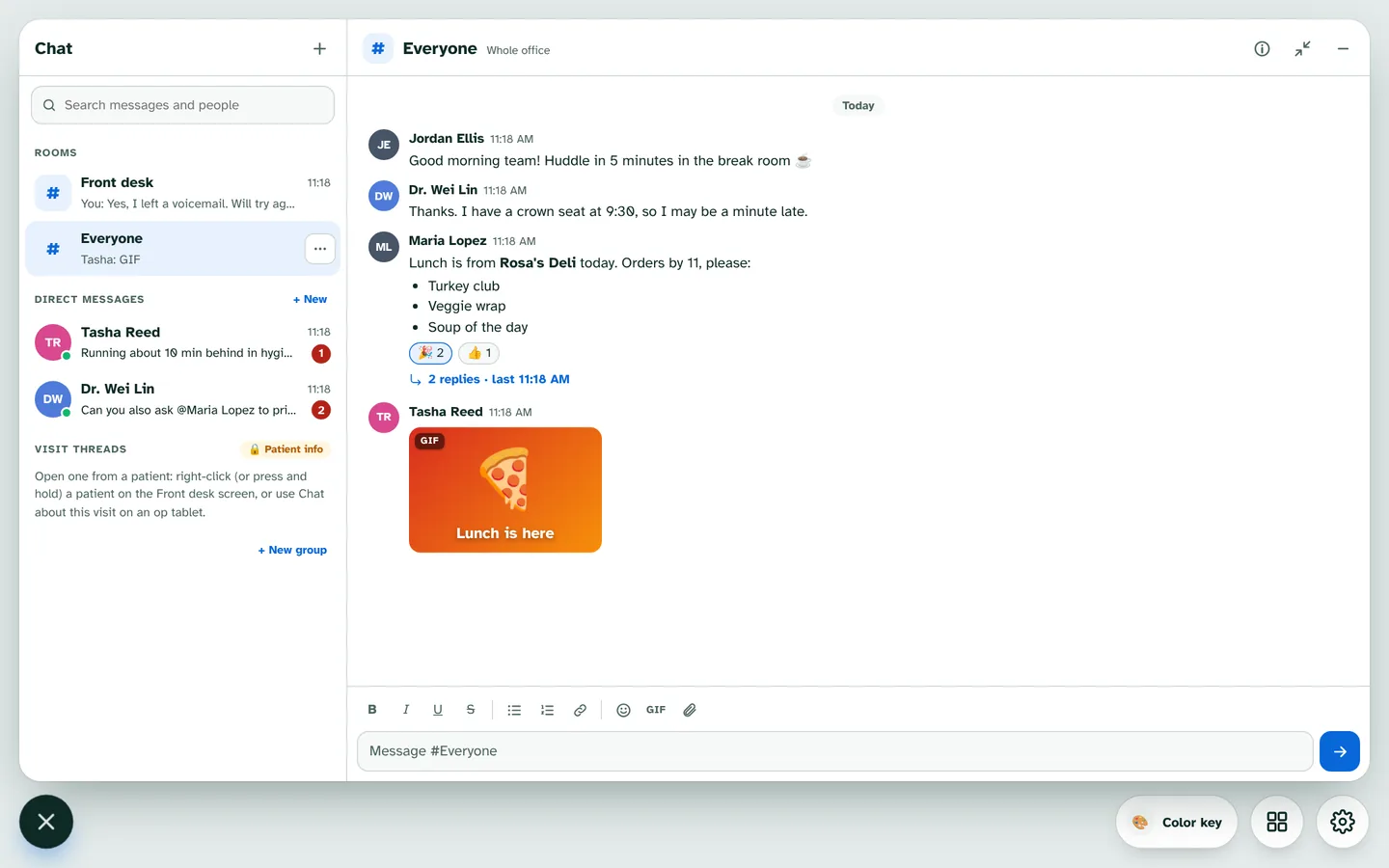
Talk without leaving the screen
A chat button on every screen except wall displays.
Rooms, direct messages and group messages, sorted into your own folders
Reply or react right from the pop-up, and mute any chat
Visit threads about one patient, only for people allowed to see patient information
@mentions, reactions, replies, Seen, files and photos, emoji and GIFs
Encrypted on your server and kept in your backups
Sign-in and settings
Everyone signs in as themselves
Staff come straight from your Open Dental users.
Sign in with a PIN, a badge tap or Microsoft. PINs sign in on the last digit, at the length your office picks
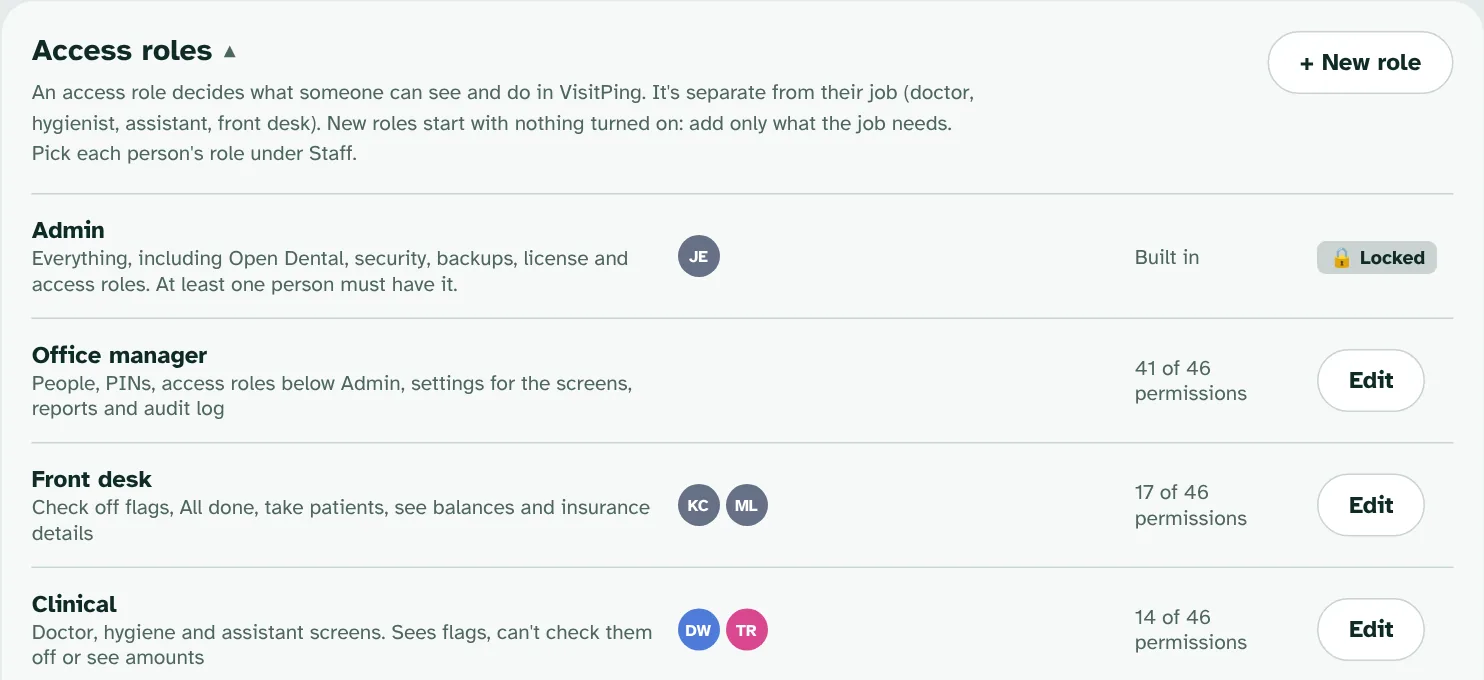
Access roles decide what each person can see and do, with patient information clearly marked
Settings are grouped into Screens, Team and System, with a guided setup
Every change is in the audit log
Updates install overnight after a backup, with one-click rollback
See it running
Try the live demo. Nothing to install.
Brookside Family Dental is a made-up 10-op office that runs a busy day around the clock: patients arrive, rooms call the doctor, the front desk checks people out and the team chats. Take the 5-minute tour, which follows one patient from check-in to checkout and opens each screen for you.
Each card says what the team needs to know before the patient goes back.
FamilyFamily members, including super families, booked at the same time
PremedNeeds premedication before treatment
New patientFirst visit to the office
Dr + HygSees both the doctor and a hygienist, with both names on the card
EarlyArrived well before their appointment time
LATEPast their time and not here yet
SELF PAYSelf pay or a discount plan, so insurance checks are skipped
Timers that escalate
Every card counts up from its appointment time. Past it, the outline pulses slow, then faster, then the whole card flashes at 15 minutes. You set the thresholds.
Nobody slips through
Patients booked in another provider's column, or in a room nobody is working today, are listed on the op tablet and at the front desk.
Alerts reach the right people
Everyone in a room gets its Next patient alert, Patient ready also reaches the doctor's assistants, and nobody gets an alert they sent.
Three kinds of screens
Shared tablets with PIN or badge sign-in, view-only wall displays, and personal phones that always act as their owner.
Installs like an app
Screens open at visitping.local on the office network and install like an app on Windows, iPhone, iPad and Android, with a layout made for phones.
Light and dark
Follows each device's light or dark setting, with an override per screen for dim ops and bright lobbies.
Fits your workflow
Choose which statuses become columns, which ops exist, which buttons the op tablets show, which alerts each job gets and how long requests stay up.
Nothing calls out
Fonts, icons and the built-in GIFs come from your own server. Screens only reach outside services for the extras you turn on: Microsoft sign-in and GIPHY search.
New in 2.2
Office chat, and a front desk that keeps up.
Ops panel NEW
See every op at a glance: the patient, the provider and how long the room's been in use. An op waiting on a request ripples in its color and pulses as the wait grows. Patients late to be seated light up in the provider's color, and you can answer a Need help with one tap.
All green, walk them out NEW
When every checkout check passes, the op tablet says "All green. Walk the patient out", so nobody stops at the desk for nothing. The front desk sees each patient about 10 minutes before their visit ends.
Rooms turning over NEW
On the Office Board, a room being cleaned shows Turning over with how long since the patient left, so everyone can see which room opens next.
Front desk jobs NEW
Pick who handles check out and treatment planning, in order. VisitPing asks #1 first and moves to #2 if they're busy, away or don't answer. Treatment to review on the op tablet asks where the patient should go.
Quick buttons your way NEW
Rename, recolor and add the big buttons on the Front desk screen. Send each one to a doctor, a whole job like the assistants, or the next person on a list. Need help is always there.
Group messages NEW
Message a few people at once, reply or react right from the pop-up, and mute any chat for an hour, until tomorrow, or except @mentions. Reactions to your messages let you know.
Rooms and direct messages
Everyone, Front desk and Clinical rooms to start, plus your own. Message anyone in the office from the chat button on every screen.
Visit threads
Chat about one patient's visit right from the front desk or the op. Only people allowed to see patient information can open them, and they close at the end of the day.
Everything you'd expect
@mentions, reactions, threads, Seen, formatting, emoji, files and photos, and a built-in GIF library that never looks anything up online, with GIPHY search if you want it.
Encrypted on your server
Messages and files are encrypted on the office server and included in your backups. Phone alerts never include the message or a patient's name.
Cleaner screens
Two round buttons switch screens and hold each screen's settings, and a Color key button explains the colors. Right-click a patient at the front desk for Checkout complete.
Light on older servers
Runs on Windows 10 or Server 2016 and newer, and uses about 70 to 130 MB of memory with chat on.
Follows your time clock
Who's available reads the Open Dental time clock. Lunch and breaks show as Away, and anyone not clocked in drops off the list until they clock in.
Quick sign-in for big offices
Small name cards grouped by job, with a name search and a Recently on this screen row when there are more than 8 people.
Settings with your own sign-in
Anyone with the Settings role opens Global settings with their own PIN and two-step code, or their Microsoft account. No shared admin password.
VisitPing installs on the Windows server that already runs Open Dental. There's no cloud copy of your schedule and nothing for us to lose.
Read-only connectionConnect with a MySQL user that can only read. VisitPing never changes an appointment, a status or a chart.
Encrypted on your networkScreens connect over HTTPS with your office's own certificate, set up by a one-click script.
Real sign-inEvery staff member signs in with their own PIN, badge or Microsoft account. Admins use two-step codes. Tablets and TVs are paired once by an administrator.
Audit log and protected secretsEvery settings change is logged, and stored passwords are encrypted with Windows' built-in protection.
Nothing about patients goes outThe license and update checks send only a random Install ID, and you can turn the license check off. Phone notifications are encrypted and name the op, never the patient. Two optional extras reach outside services: Microsoft sign-in, and GIPHY search in chat, which sends only the words typed in the GIF search.
Screens talk only to your server. The license service never sees names, appointments or anything from Open Dental.
Up and running in an afternoon
Four steps, no new hardware.
Install on your server
Run the installer on the Windows PC that hosts Open Dental. VisitPing runs as a background service and starts with Windows.
Connect to Open Dental
Create a read-only MySQL user with Open Dental's MySQLManager, then paste it into Settings and test the connection.
Match your statuses
Pick which Appt Confirmed statuses become board columns and which ones mean "in the op."
Add your team, open the screens
Pick who uses VisitPing from your Open Dental users and print the PIN sheet. Then put the board on a TV, pair a tablet in each op, and have doctors add the screen to their phones.
Works with: Open Dental on a Windows server (Windows 10, 11 or Server 2016 and newer, 64-bit). Screens can be any modern browser: Edge, Chrome, Safari or Firefox.
Pricing
One plan. The whole office.
Try everything free for 30 days, then one simple subscription.
Version 3.0.4 · 30 MB · 64-bit WindowsSHA-256 255dd4194ef82ebca33c311655fb78e8742514378780bd1feb6b9734844e8c3fIf Windows SmartScreen asks, choose More info then Run anyway.
Questions
Frequently asked
Does VisitPing change anything in Open Dental?
No. It connects with a read-only MySQL user and never writes. It reads what the screens need: appointments, statuses, ops and providers; for the front desk, balances, insurance, claims, recall and treatment plans; medical alerts for the op; Open Dental users for sign-in; and the time clock for Who's available. Your team keeps working in Open Dental exactly as they do today.
Can we try it without installing anything?
Yes. The live demo runs a made-up office all day, every day. Open it on any computer, tablet or phone, tap a name to sign in, and take the guided tour. When you're ready, the 30-day trial runs on your own server with your own Open Dental.
Do we need new hardware?
No. VisitPing runs on the server that already hosts Open Dental. Any TV with a browser or a small PC, any tablet, and any phone can be a screen.
Is patient information sent to the cloud?
No. Everything runs in your office and screens connect to your server over your network. The license check sends only a random Install ID, and you can turn it off. If you turn on phone notifications, they travel encrypted through Apple's, Google's or Microsoft's standard push service and say which op needs the doctor, never the patient's name. See our Privacy Policy for details.
Is VisitPing HIPAA compliant?
VisitPing is built for HIPAA-covered offices: patient data stays on your server, connections are encrypted, sign-in is required, and changes are logged. Because we never receive patient data, it sits inside your existing HIPAA safeguards for the server and screens rather than adding a new vendor that stores PHI.
Which sign-ins and phone systems work?
Staff sign in with a PIN, a badge tap or their Microsoft account. Google Workspace sign-in, and Mango Voice and RingCentral phone status for Who's available, are coming soon.
How long is office chat kept?
One year by default. You can set anywhere from 30 days to 6 years. Messages and files are encrypted on your server and included in your backups, and visit threads close at the end of the day.
What happens when the trial ends?
Buy from Settings › License and the license installs itself. If you don't, the screens pause after the trial, while Settings stays open so you can buy any time. Nothing in Open Dental is affected.
Can we cancel?
Yes, any time from the billing portal. Your screens keep working through the end of the period you paid for, plus a short grace period.
We have more than one office.
Each office's server gets its own install and license. Email us and we'll set up pricing for your group.